
Ad Analytics
Your PPC next to your profit
A PPC reporting dashboard for Amazon sellers. Upload your Sponsored ads report and see ad spend, ad sales, ACoS and TACoS by product, by campaign and by day, with advertising cost deducted from your net profit.
We are an independent service provider and are not affiliated with or endorsed by Amazon. Amazon, Amazon Ads, and all related logos are trademarks of Amazon.com, Inc., or its affiliates.
No credit card required · Ad Analytics costs no credits
Key Features
Everything you need to read what your advertising costs and what it brings in.
PPC dashboard
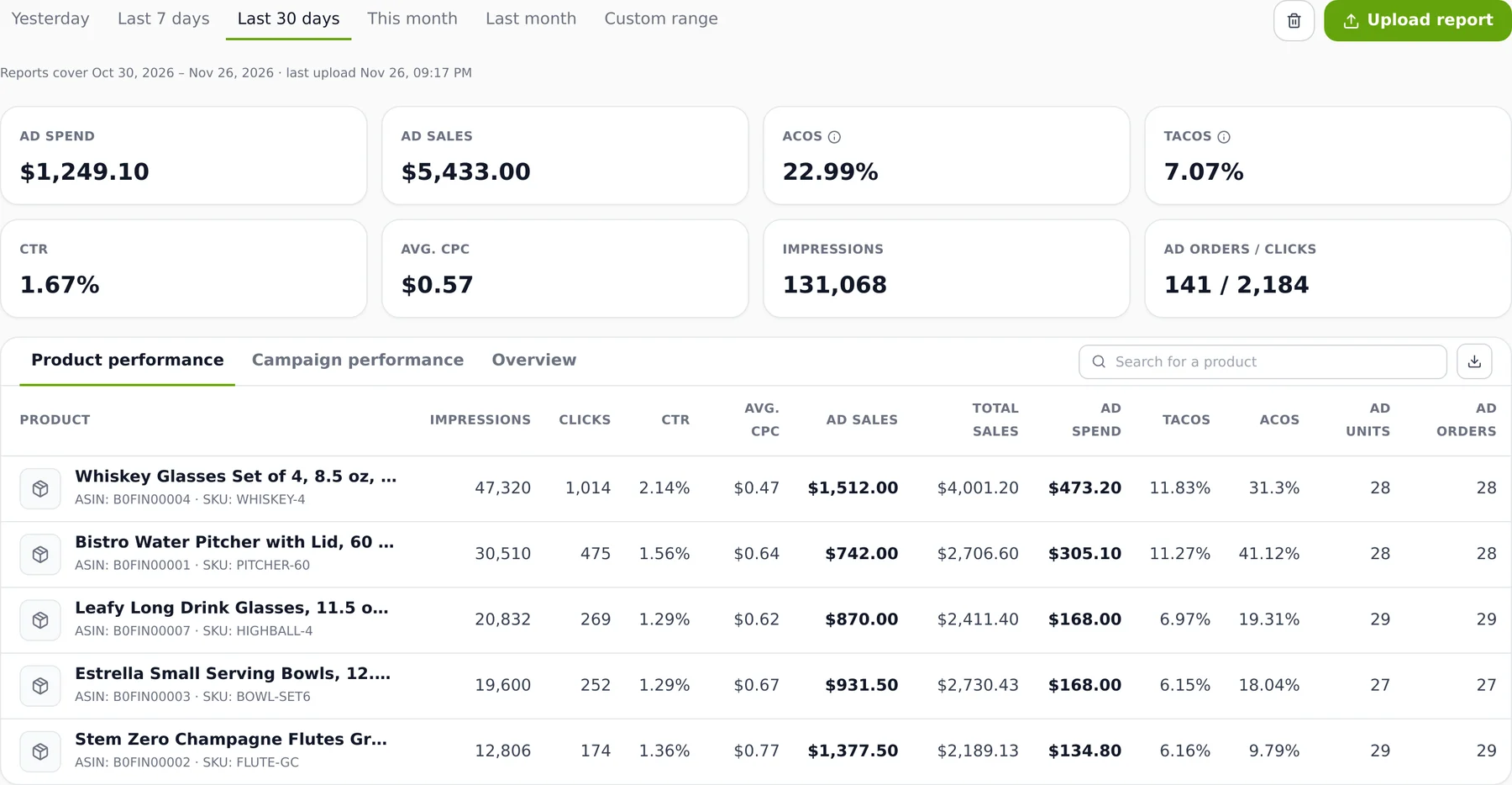
Ad spend, ad sales, ACoS, TACoS, CTR, average CPC, impressions, clicks and ad orders for any period.
Product ad performance
Every advertised product with impressions, clicks, CTR, CPC, ad sales, total sales, spend, TACoS and ACoS.
Campaign performance
The same numbers per campaign, for Sponsored Products, Sponsored Brands and Sponsored Display reports.
TACoS against real sales
Advertising spend compared with all sales of the store in the same days, from the store’s own orders.
Profit after advertising
Uploaded ad spend becomes a row of your Profit & Loss and is deducted from net profit on every finance page.
Upload and export
Upload .xlsx or .csv reports from the advertising console; download every table as .csv.
How it Works
From your advertising report to profit after ads, in four steps.
Connect your store
Create a SellerBowl account and connect your Amazon store, so your orders are read next to your advertising.
Download your report
In the advertising console create a Sponsored Products "Advertised product" report with the time unit "Daily".
Upload it
Open My Store → Advertising → Ad Analytics and upload the file. The same days uploaded again replace the old ones.
Read ads with profit
See spend, ACoS and TACoS by product, campaign and day, and your net profit after advertising.
See it in Action
The pages as a seller sees them.
Campaign performance
Every campaign with its impressions, clicks, CTR, CPC, ad sales, spend and ACoS. Sort out the campaigns that earn their spend from the ones that do not.
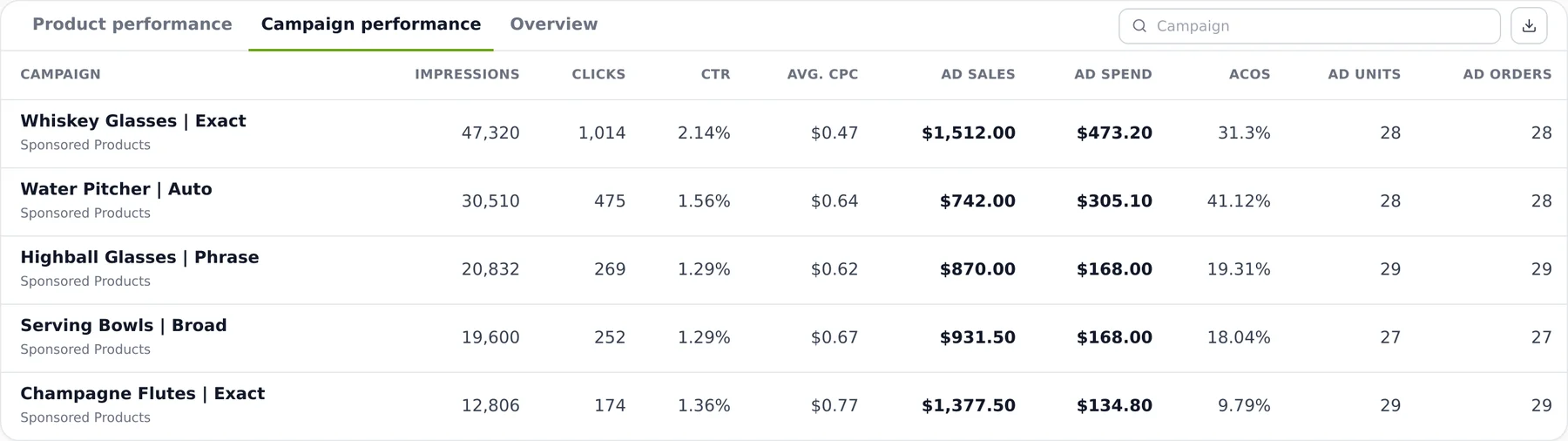
Shown with example data from a demo store.
Profit after advertising
Uploaded ad spend becomes the "Advertising expenses" row of Profit & Loss and is deducted before net profit, month by month.
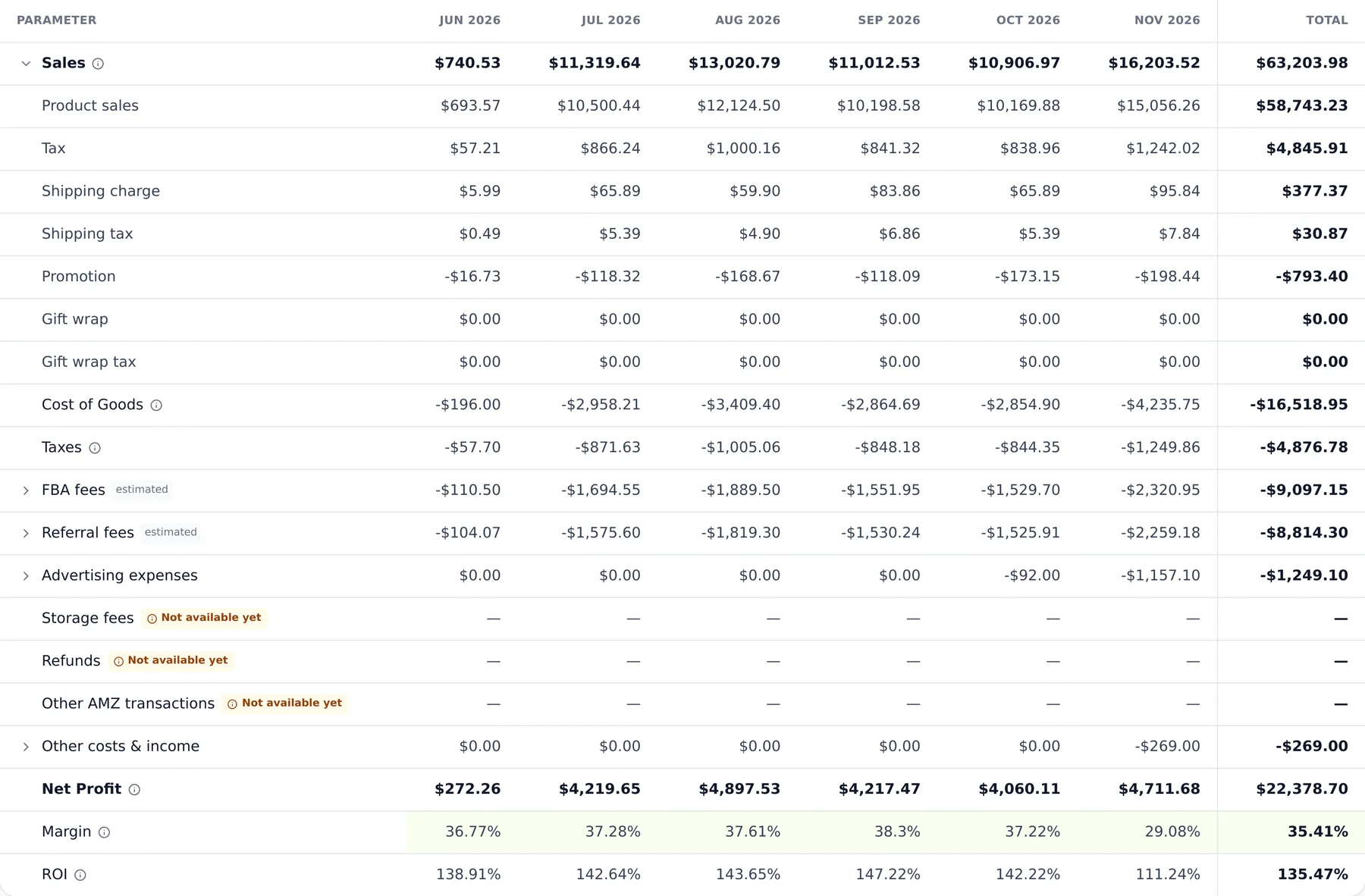
Shown with example data from a demo store.
Reports you Can Upload
Any daily report from the advertising console that has a date and a spend column, as .xlsx or .csv.
| Report | What you see |
|---|---|
| Sponsored Products · Advertised product | Every advertised product by day, with its campaign and ad group: the full product, campaign and day views. |
| Sponsored Products · Campaign | Every campaign by day: the campaign and day views. |
| Sponsored Brands · Campaign | Brand campaigns by day, next to your other campaigns. |
| Sponsored Display · Campaign or Advertised product | Display campaigns by day; by product when the report names the product. |
Choose the time unit "Daily" when you create the report. A report without products is shown by campaign only; its spend still counts in your profit.
The Numbers, Defined
Every figure is worked out from your own report and your own orders. Nothing is estimated.
- Ad spend
- The cost of your ads in the period, as your report states it.
- Ad sales
- Sales your report attributes to the ads.
- ACoS
- Ad spend ÷ ad sales.
- TACoS
- Ad spend ÷ all sales of the store in the same days.
- CTR
- Clicks ÷ impressions.
- Average CPC
- Ad spend ÷ clicks.
- Ad orders and units
- Orders and units your report attributes to the ads.
- Net profit after advertising
- Sales − marketplace fees − cost of goods − ad spend.
Your advertising Data
What Ad Analytics does
- Reads the report file you choose, in your browser, and stores its report lines for your store only.
- Shows your advertising figures only to you, next to the sales of the same store.
- Lets you remove every uploaded report with one button, at any time.
What it does not do
- Does not create, change or pause campaigns, bids, budgets or keywords.
- Does not share or sell your advertising data, and does not use it for other sellers.
- Does not ask for your advertising console password.
More in our Privacy Policy and Data Security pages.
Use Cases
What sellers use Ad Analytics for.
Find the ads that lose money
See which advertised products spend more than they bring in, with ACoS and TACoS side by side.
Compare campaigns
Put every campaign in one table and see where the next dollar of budget works hardest.
Know your real profit
Net profit that already has advertising taken off, ready to share with a partner or an accountant.
Frequently Asked Questions
Do I have to connect my advertising account?+
No. You download a report in the advertising console and upload the file to SellerBowl. Nothing is connected to your advertising account and nothing in it is changed.
Does Ad Analytics change my campaigns, bids or budgets?+
No. Ad Analytics is a reporting tool. It reads the report you upload and shows it next to your sales and profit.
Which ad types are covered?+
Sponsored Products, Sponsored Brands and Sponsored Display reports. Product-level views need a report that names the advertised product; campaign reports are shown by campaign and by day.
What does it cost?+
Ad Analytics is included in every SellerBowl account with a connected Amazon store, also on the free plan, and uses no credits.
Where does "total sales" for TACoS come from?+
From the orders of the store you connected to SellerBowl, for the same days your report covers.
What happens when I upload the same days again?+
They replace what was there, so nothing is counted twice. You can also remove every uploaded report with one button.
Who can see my advertising data?+
Only you, in your own account. SellerBowl does not share or sell it and does not use it for other sellers.
Read your ads next to your profit
Create a free account, connect your store and upload your first report.
Ad Analytics is a product of SellerBowl LLC, 700 Louisiana Street, Suite 3950, Houston, TX 77002, USA.
Questions about Ad Analytics: [email protected]